
All your chats in one window. None of the extra browsers.
Labaro runs Slack, WhatsApp, Discord, Gmail and more side by side in a small native Mac app. It borrows the web engine your Mac already has, so adding a service costs what that page uses, not another copy of Chrome.
Version 0.15.2. Free while in beta. Apple Silicon and Intel.
Release notes are up, have a look before standup docs.example.com/release-0-4
Found the recipe you asked about recipes.example.org/plum-tart
Patch 2.1 is live, changelog here game.example.net/patch-2-1
Invoice for September attached, payment link below billing.example.com/inv/0927
This week in native apps, read it online news.example.com/digest-41
Other chat hubs ship a browser per service
Franz, Ferdium and Rambox are built on Electron. Every service you add starts its own Chromium process, around 100 to 150 MB before the page has loaded a single message.
Labaro gives each service a view onto the system’s own engine: WebKit on macOS, WebKitGTK on Linux, WebView2 on Windows. A typical chat page then costs 30 to 80 MB, whatever the page itself allocates.
Services you aren’t using cost even less. They’re put to sleep, and Gmail and Slack are then checked for new messages without loading a page at all.
Electron-based clients
500–750 MB of engine before any chat loads
Labaro
One shared engine, the one your Mac already runs for Safari and Mail
How it behaves
- Links open in your browser
- A link someone sends you opens in your default browser, with your extensions and your tabs. Only the service’s own pages load inside Labaro.
- Each service signs in on its own
- Slack’s cookies never see WhatsApp’s. Every service gets its own storage, so you can run two Slack workspaces or two WhatsApp numbers side by side. Needs macOS 14 or later.
- Red for you, green for later
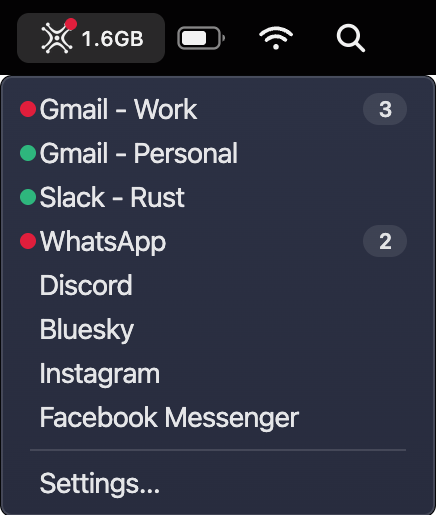
- A red badge counts the messages that need you. A green dot means only things that can wait, like Gmail’s tabs other than Primary or a Slack channel that doesn’t mention you. Sleeping services keep their badges.
- Notifications from every service
- Messages arrive as ordinary macOS notifications, with the service’s name under the title. Click one to jump straight to that service, and in Slack, to the conversation.
- Your order, your list
- Drag icons to reorder them. Right-click one to rename, reload or delete it, or to turn it off without losing its setup. Add anything else with a web address.
- Switch without the mouse
- ⌘1 to ⌘9 jump to your first nine services, in the rail’s order, and ⌘↑ and ⌘↓ go to the one above or below, even while you’re typing a message. The Services menu lists them too.
- Light or dark, service by service
- Each service follows macOS unless you say otherwise. Right-click its icon to switch it to dark or light. Only pages with a dark theme of their own change, such as WhatsApp’s.
- Memory you can see
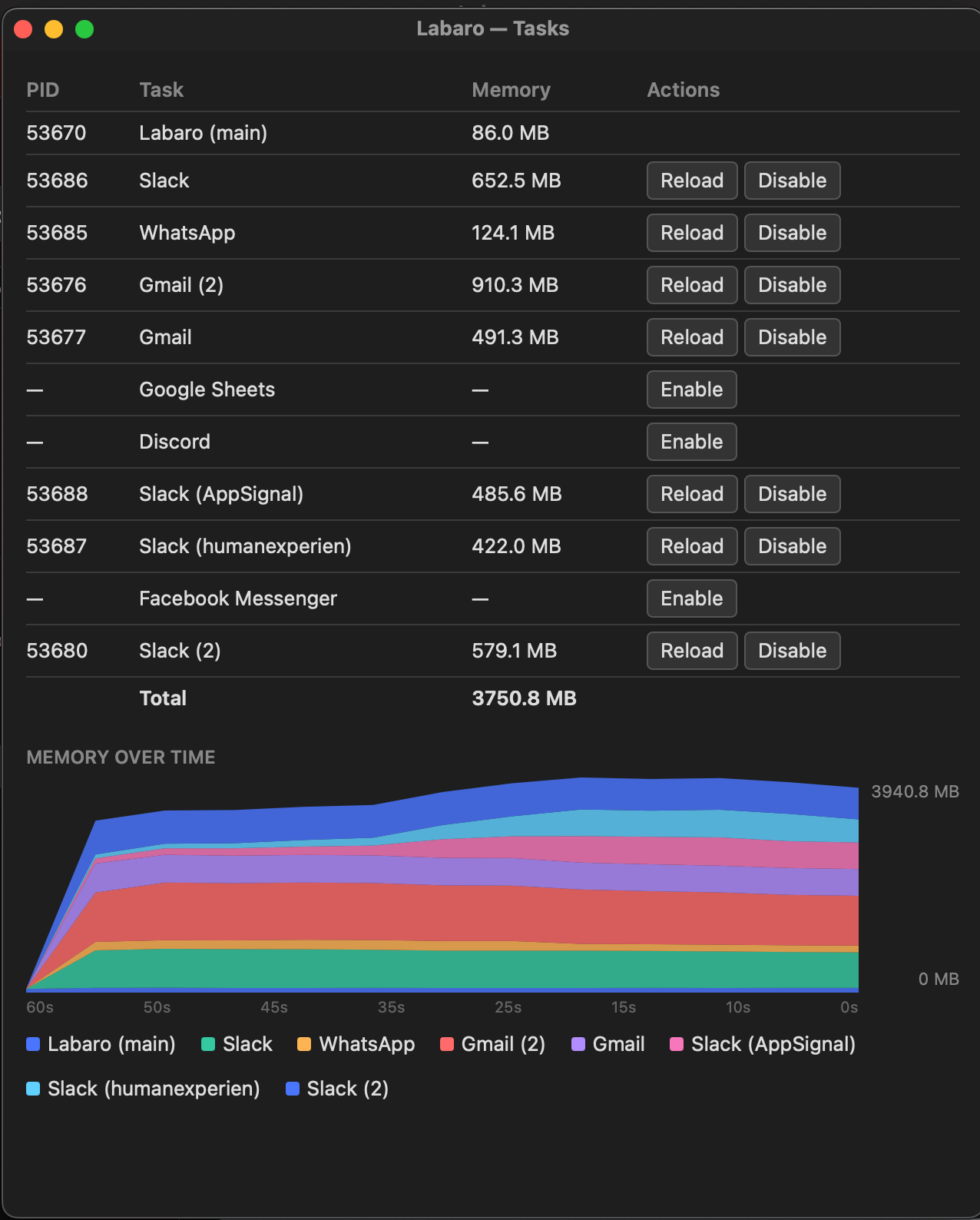
- A small readout in the rail shows what Labaro is using right now, and a Tasks window breaks it down per service.
Services you aren’t using give their memory back
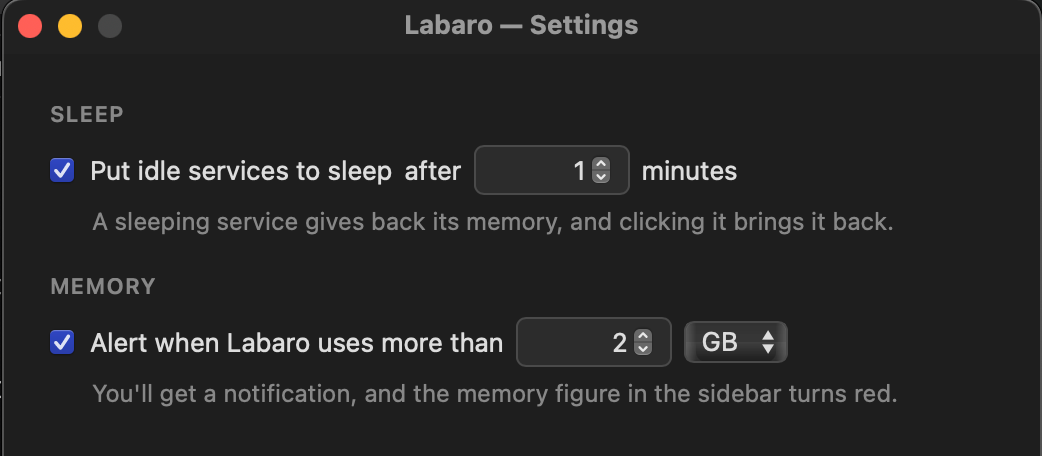
A service nobody has opened for 15 minutes is put to sleep. Its page is closed and its memory returned, its icon dims and gets a moon, and clicking it brings it straight back.
Checking a sleeping service costs almost nothing. Gmail and Slack are checked every minute without a browser, in a request or two of a few KB instead of a hidden page that can take 600 MB. In Settings you can change when services sleep, keep one awake, or get an alert when Labaro uses more memory than you’d like.
When a service misbehaves, look inside
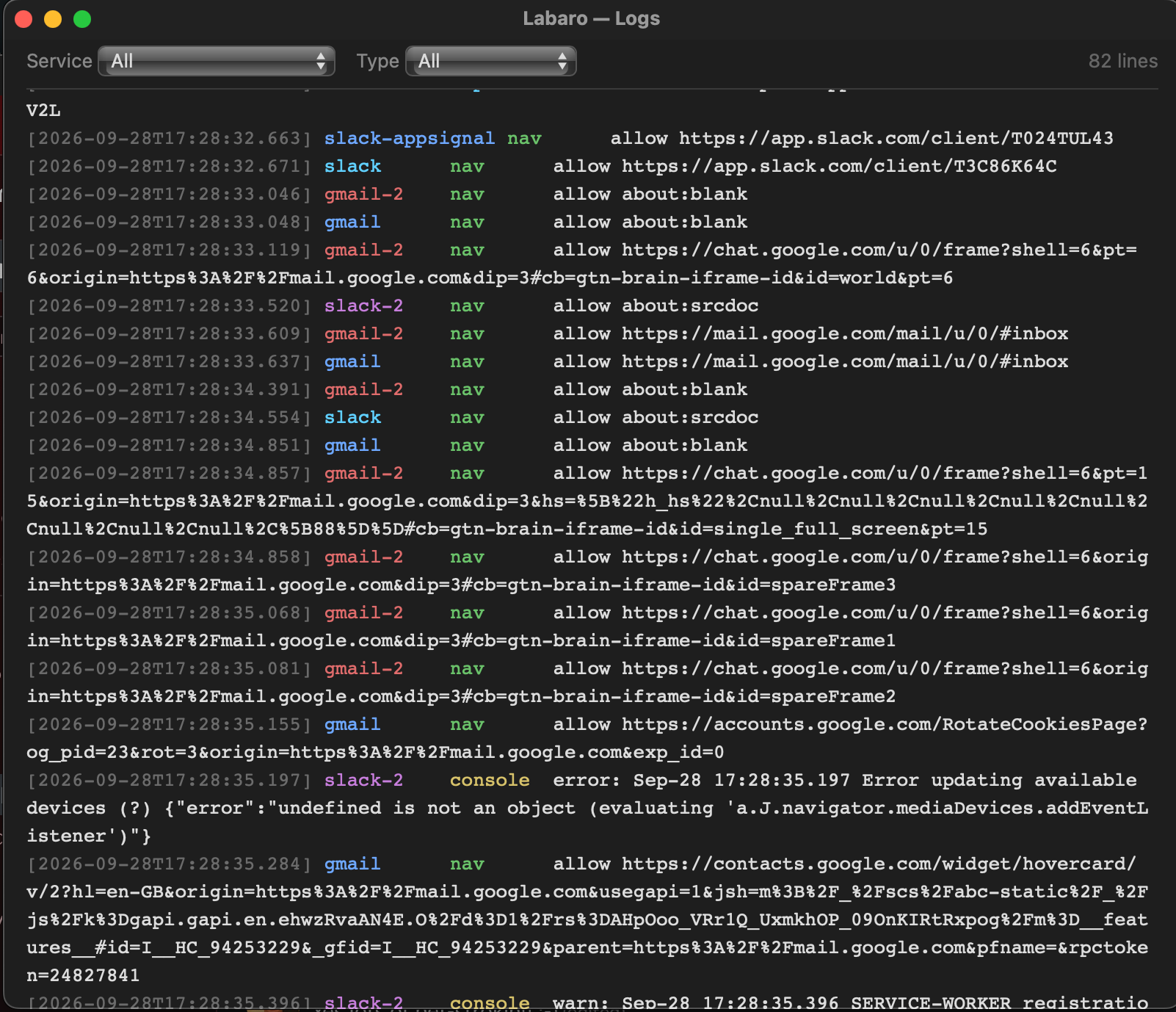
Every service runs in its own process, so you can see exactly which one is eating memory and what it’s been doing.
Pick from the list, or paste any address
The first time Labaro opens, it asks which services you want. These are ready to go:
- Bluesky
- Discord
- Facebook Messenger
- Gmail
- Google Drive
- Google Meet
- Google Sheets
- Mastodon
- Slack
- Steam Chat
- X
- Zoom
- Any web app, by URL
What doesn’t work yet
Labaro is young. Here’s what you’ll run into, so you don’t have to find out the hard way.
“Sign in with Google” on Slack is blocked
Google refuses sign-in from embedded WebKit views. Use Slack’s email or magic-link sign-in instead. Gmail itself signs in fine.
The Mac build isn’t notarized yet
macOS will stop the first launch. Right-click Labaro, choose Open, then confirm. You only do this once.
Each beta version runs for 30 days
After that, Labaro opens on a page with a button to download the latest version. Put it in Applications in place of the old one. Your services and sign-ins stay as they are.
Mac only for now
The same code runs on WebKitGTK and WebView2, but only the Mac app is packaged and regularly used today. Linux and Windows builds aren’t released yet.
Get Labaro
- Download
Labaro.zip, or pick a version on the releases page. - Unzip it and drag Labaro into Applications.
- Right-click Labaro, choose Open, and confirm. Only needed the first time.
- Pick your services and sign in to each one.
macOS won’t open it, or says it’s damaged? Installing Labaro in the manual has the fix, and the rest of themanual covers everything after that.