
Manual contents
Configuring
Settings
Every option in Labaro’s Settings window, and what it’s set to to begin with.
Open Settings with Tools → Settings… or ⌘,. There’s no Save button, and nothing needs a restart: each change applies straight away.
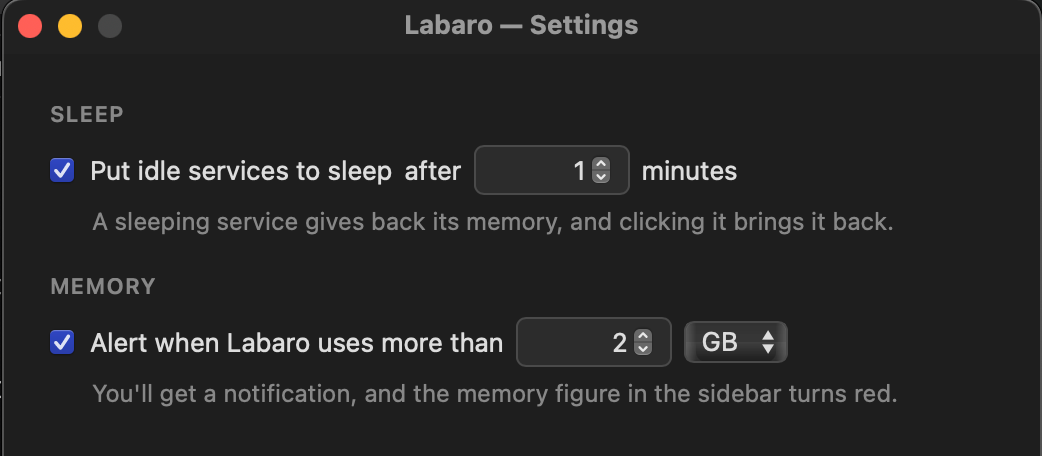
| Setting | To begin with | What it does |
|---|---|---|
| Put idle services to sleep after … minutes | On, 15 minutes | Puts a service to sleep once you haven’t looked at it for this long, from 1 minute to 1,440 (a day). Turning it off wakes every sleeping service. |
| Alert when Labaro uses more than … | Off, 2 GB | Turns the sidebar’s memory figure red while Labaro is over the limit, and notifies you if it stays over for more than a minute. Set in MB or GB. |
| Show the Labaro icon in the menu bar | On | Puts Labaro’s icon in the macOS menu bar. Click it to switch to any of your first ten services, or to open Settings. A service with something unread has a red or green dot beside its name, as in the sidebar. |
| Show memory usage next to it | Off | Shows how much memory Labaro is using beside the menu bar icon, such as “2.4GB”, in red while it’s over the memory alert’s limit. |
| Check for updates when Labaro starts | On | Checks for a newer version each time Labaro opens, and only says something if there is one. |
Settings that apply to one service, such as keeping it awake or turning its notifications on, are in that service’s Edit window. See Service settings.
More on each setting:
Written for Labaro 0.26. Something wrong or missing?Tell us on GitHub.