
Manual contents
Help
Tasks, Logs and Console
See which service is using your memory, what each one has been doing, and look inside a page when it misbehaves.
Every service runs in its own process, so you can see exactly what each one is using and doing. The Debug menu has the tools.
Tasks
Debug → Tasks lists Labaro and each of your services, with a total at the bottom.
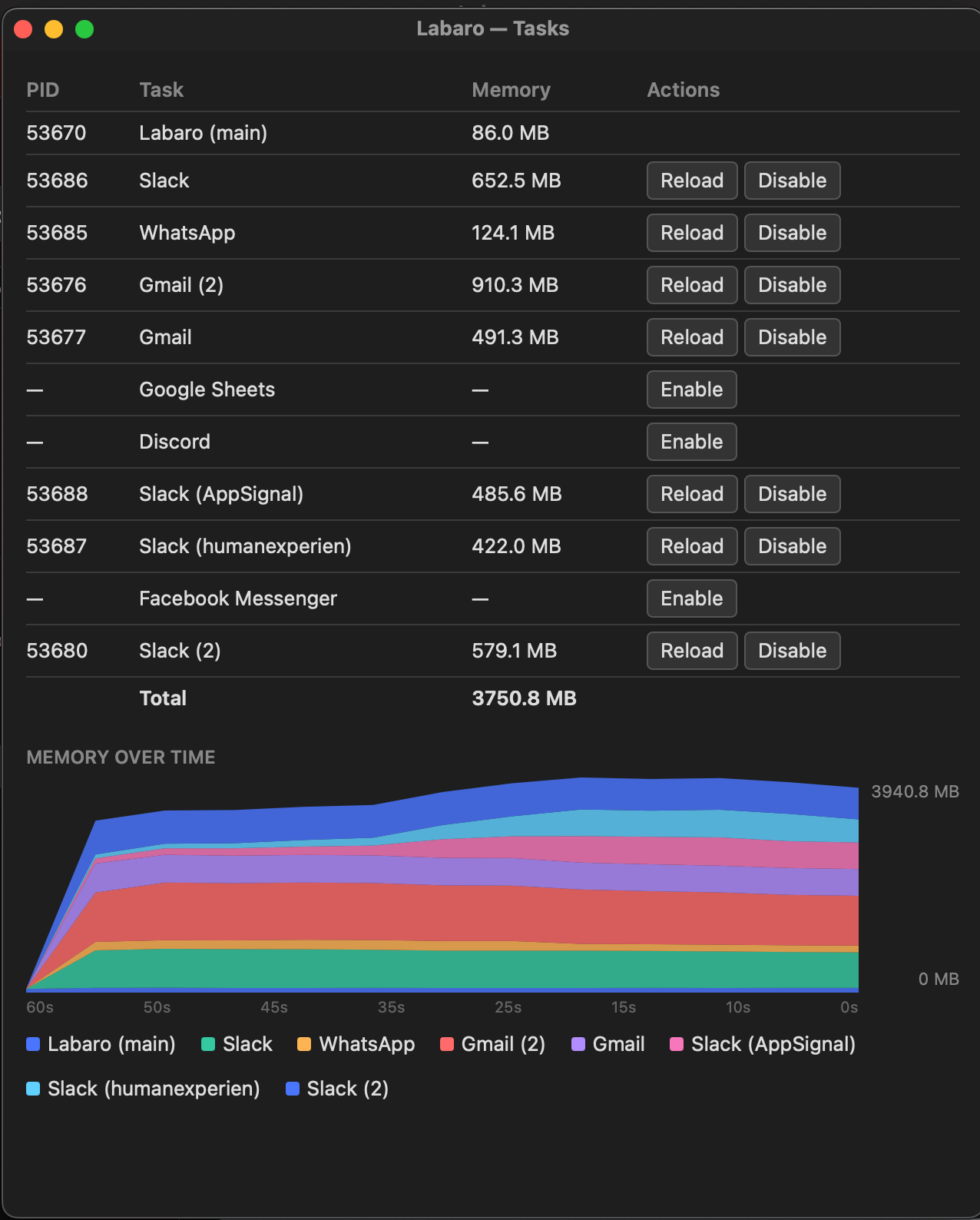
| Column | What it shows |
|---|---|
| (first) | Whether the service is running (a green dot), asleep (a moon), being checked (arrows going round) or disabled (a crossed-out circle). Point at it for its name. |
| PID | The service’s process ID, as Activity Monitor shows it. |
| Task | The service’s name. |
| Memory | How much memory it’s using right now, measured the way Activity Monitor measures it. |
| Idle | How long since you last looked at it: active for the one on screen, then 45s, 12m and so on. |
| Actions | Reload and Disable or Enable. A sleeping service shows (suspended) instead of Reload. |
- Reload reads Reloading… until the page has loaded again. Use it on a service that’s grown large.
- Click a column’s heading to sort by it. Labaro remembers the order.
- The chart underneath stacks each service’s memory over the last 10 minutes. Labaro keeps recording while the window is closed, so it shows the trend as soon as you open it.
Logs
Debug → Logs shows the last 200 lines of Labaro’s log, coloured by service.
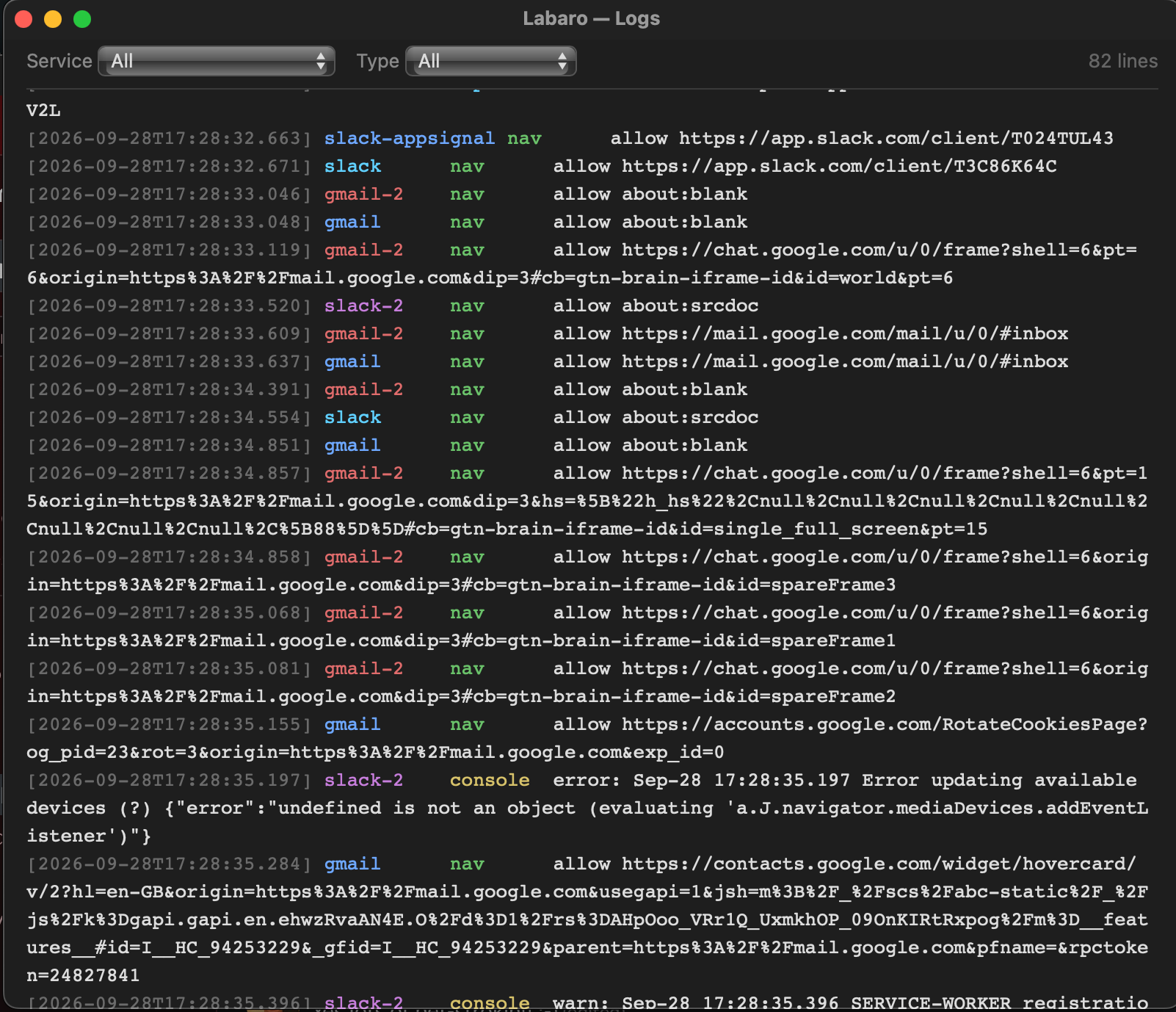
- Service shows one service’s lines only.
- Type shows one kind of line, such as navigations, or console errors, warnings or messages.
- The line count is in the top right. Labaro remembers your filters.
Each line has the time, the service, the kind of line and what happened. Navigation lines say what Labaro did with each page a service went to:
| It says | What happened |
|---|---|
allow |
The page loaded inside the service. |
deny->external |
The page opened in your browser instead. See Links and signing in. |
block |
The page didn’t open anywhere, usually because it’s on the service’s blocked list. |
The window reads the log when it opens, and doesn’t update while it’s open. Close it and open it again to see newer lines. The log starts afresh each time Labaro opens, and is kept in ~/Library/Application Support/labaro/labaro.log.
Console
Debug → Open Console opens Safari’s Web Inspector for the service on screen, where you can see its console, network requests and page structure. Inspect Element on the right-click menu inside a page opens the same thing.
Try sleeping and checking now
These run straight away what Labaro would otherwise do on its own timers:
- Debug → Suspend Inactive puts every service except the one on screen to sleep. A service set never to sleep is left alone.
- Debug → Check Notifications (⌃⌥⌘N) checks every sleeping service that has notifications on, one at a time.
Report a problem
Help → Report a Bug opens Labaro’s issue tracker on GitHub. Say what you did, what happened, and your version of Labaro, which Labaro → About Labaro shows. A few lines from the log usually help too.
Written for Labaro 0.26. Something wrong or missing?Tell us on GitHub.